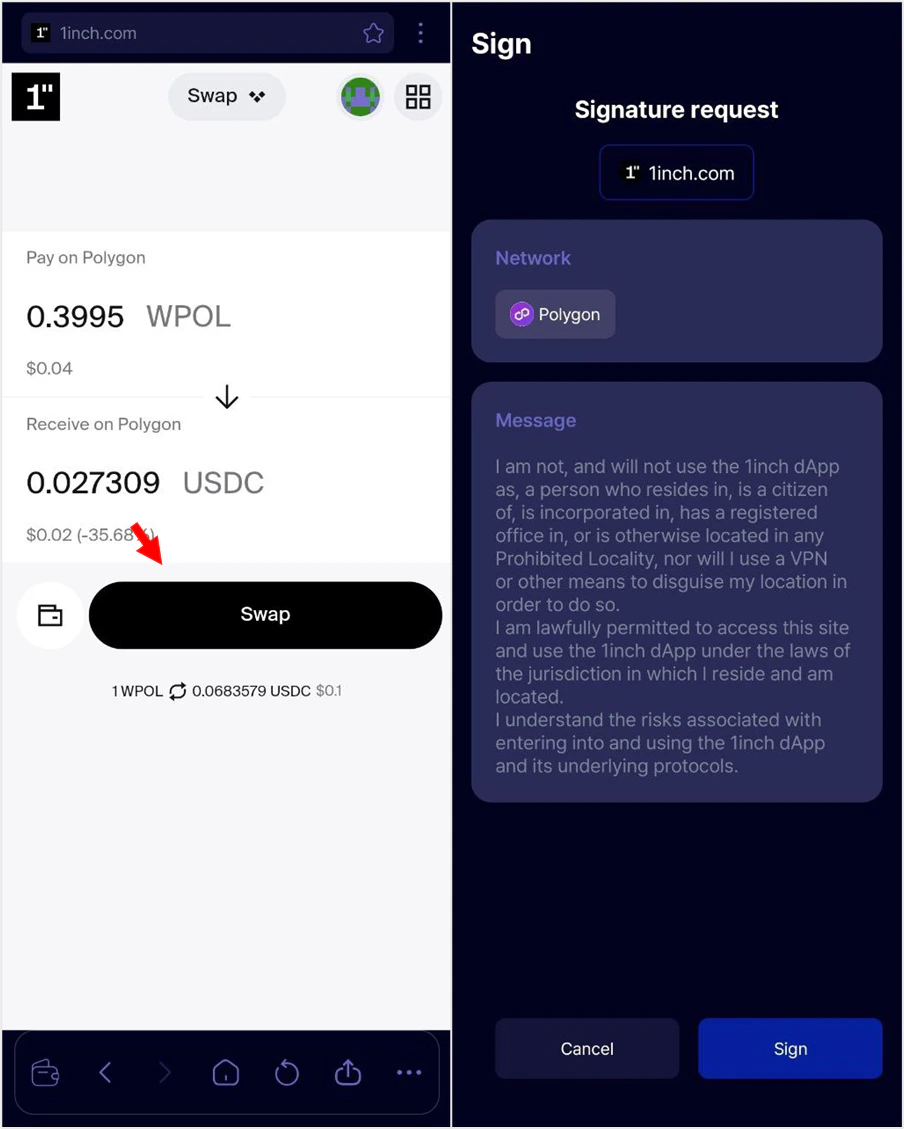
Open the Web3 Browser
Tap the Web3 tab at the bottom of the Talken Wallet app to open the Web3 browser. You can access Favorites, Open in browser, Home, Refresh, and Link sharing features.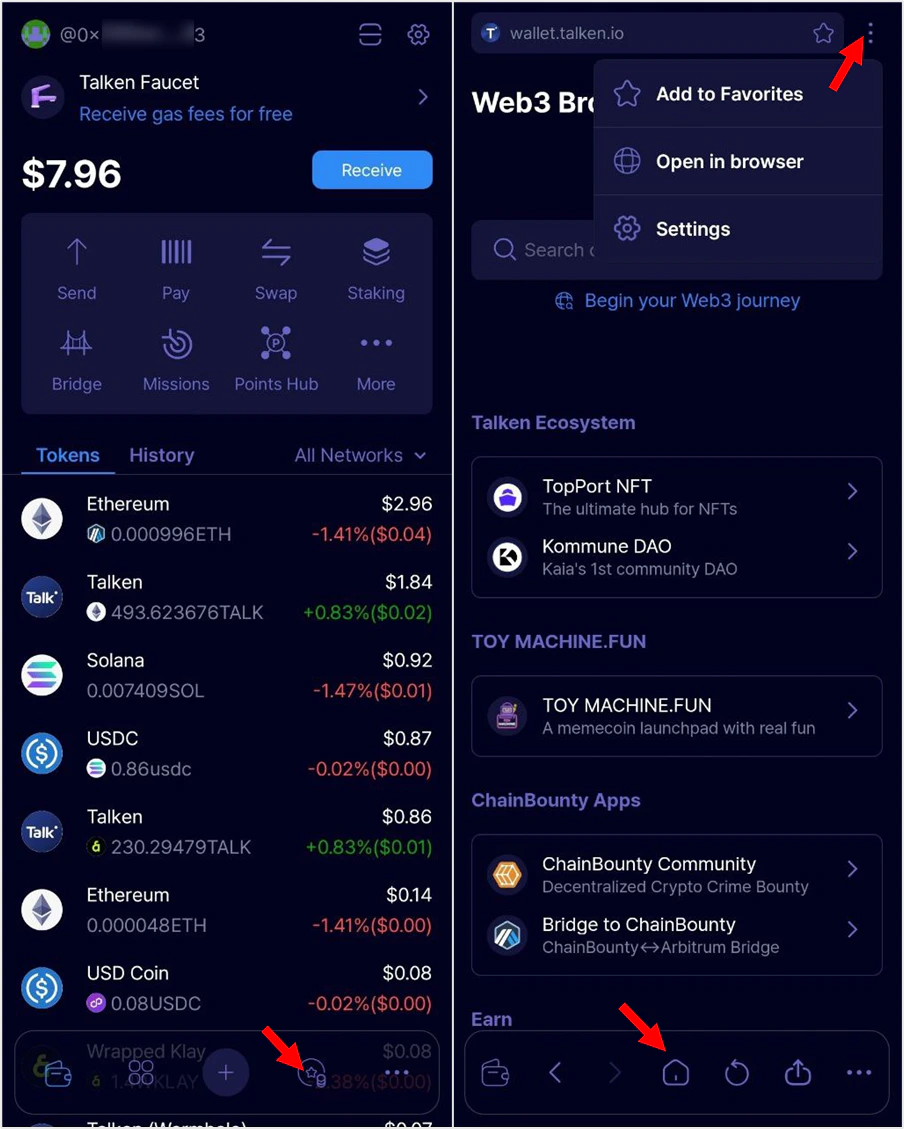
Access a Web3 App(DApp)
Enter the Web3 App URL in the search bar, or choose a service from the featured categories: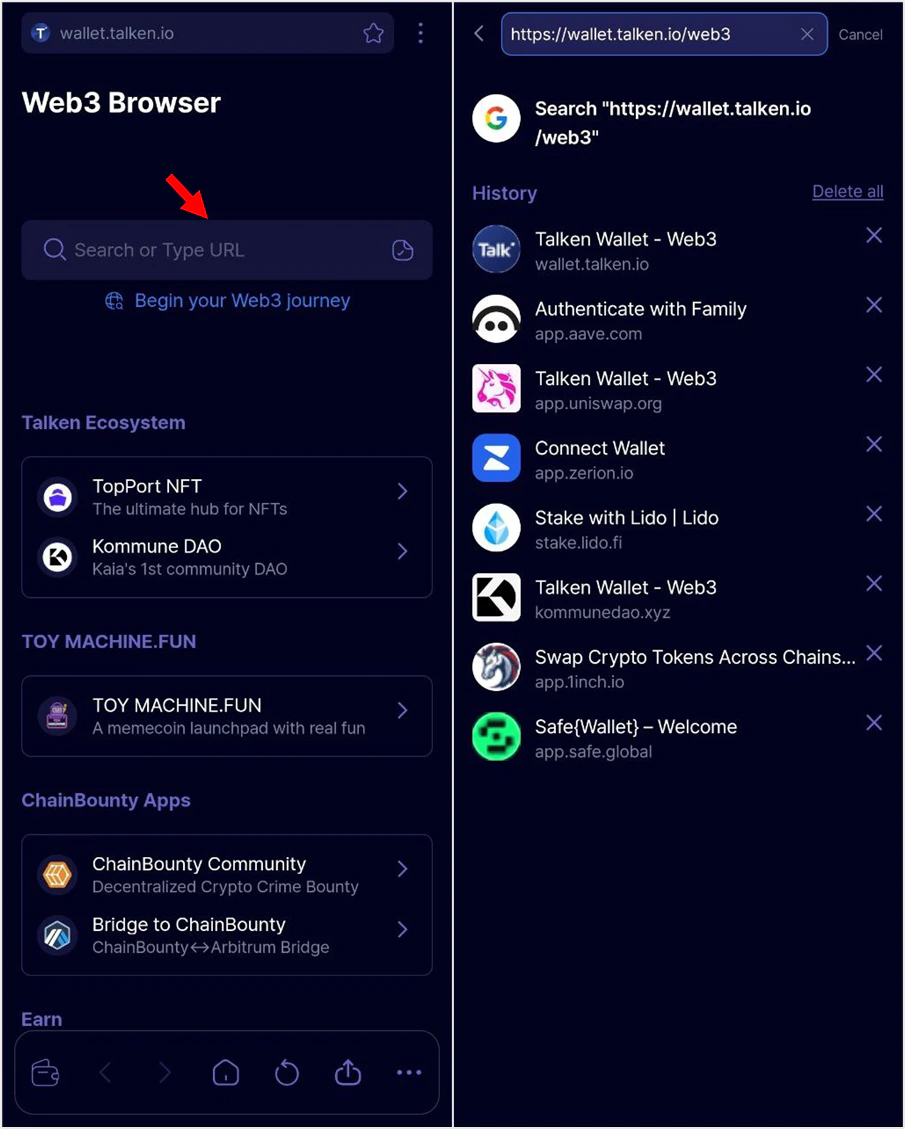
- Talken Ecosystem: Officially recommended partner projects or special campaigns
- Earn: All ways to earn rewards within Talken
- Top Apps: Popular Web3 Apps frequently used by Talken users
Connect Your Wallet
When you access a Web3 App, a wallet connection prompt will appear. If required, select Talken Wallet or MetaMask to connect.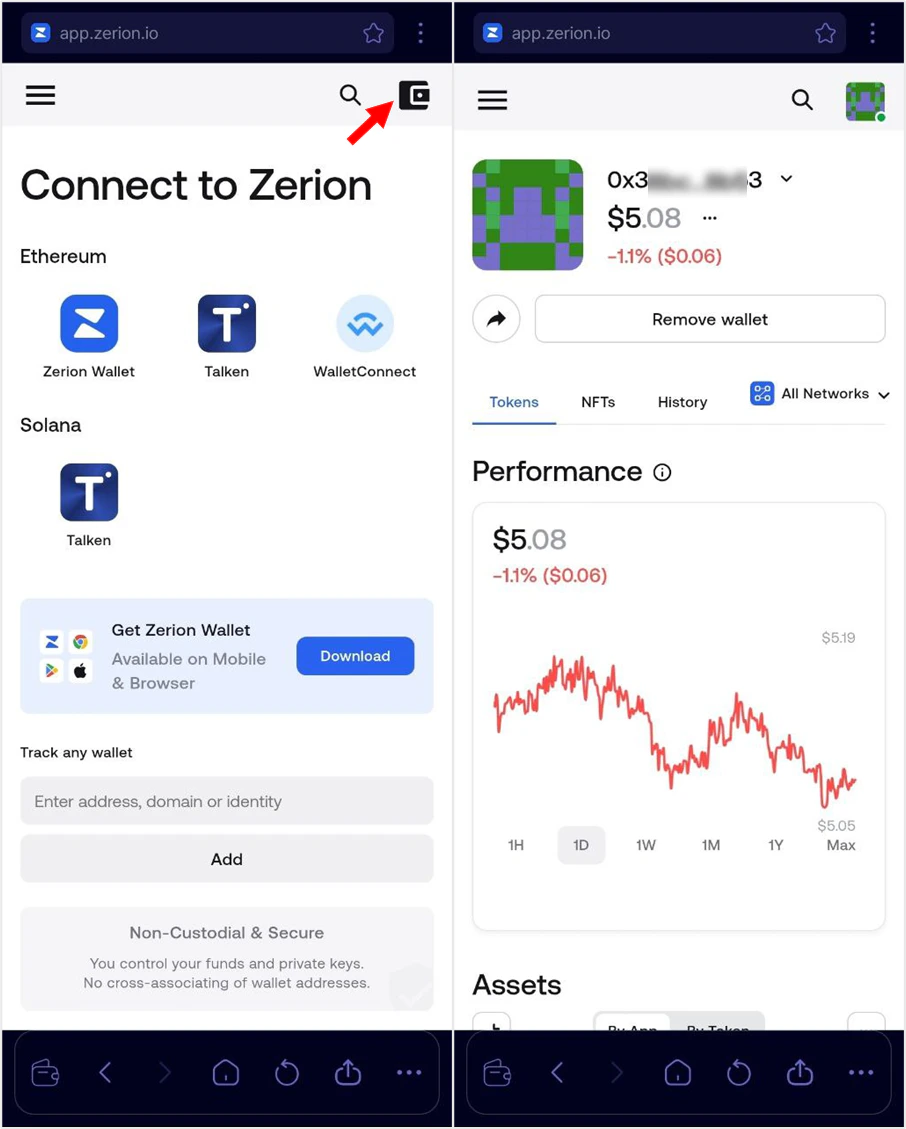
Automatic Network Switching - Networks are automatically switched based on the Web3 App. Some Web3 Apps may require manual selection.